BSS Top Trends
Created on: Mar 03, 2026
PRE-REQUISITES
-
The plugin requires you to install the BSS Core plugin first.
INSTALLATION
-
Go to the Order Details Page and Download plugin package
-
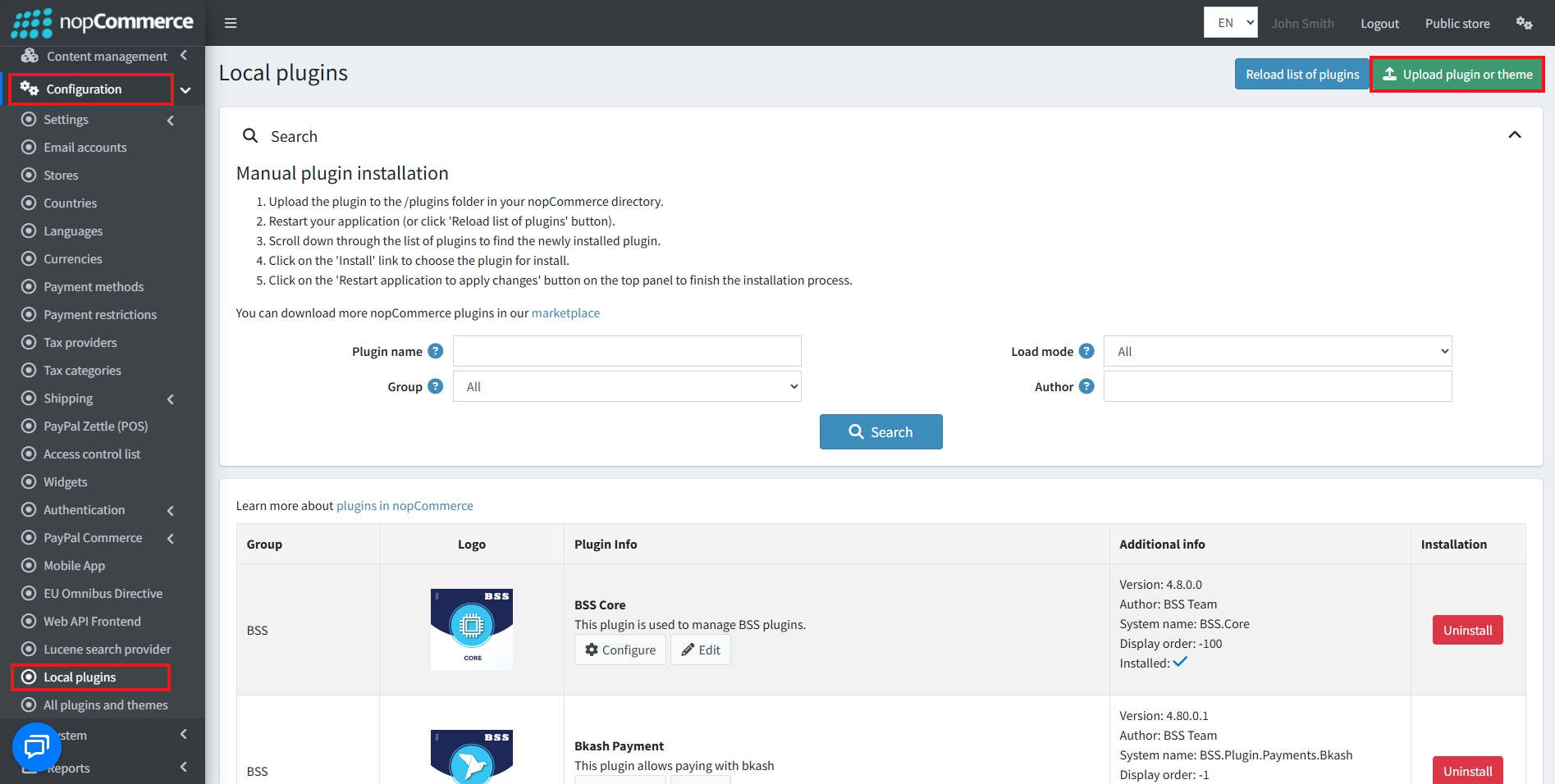
Go to Administration → Configuration → Local plugins
-
Within the bundle, you get all the required files, including BSS.Core
-
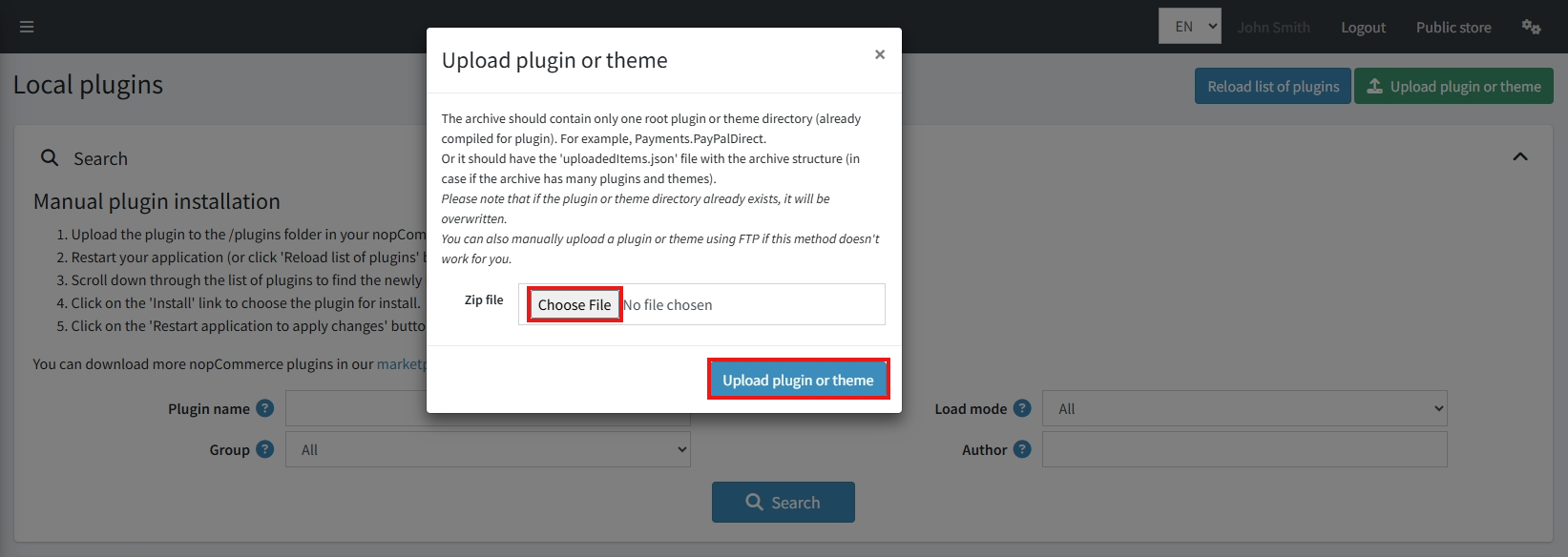
Upload the zip files using the ‘Upload plugin or theme' button
-
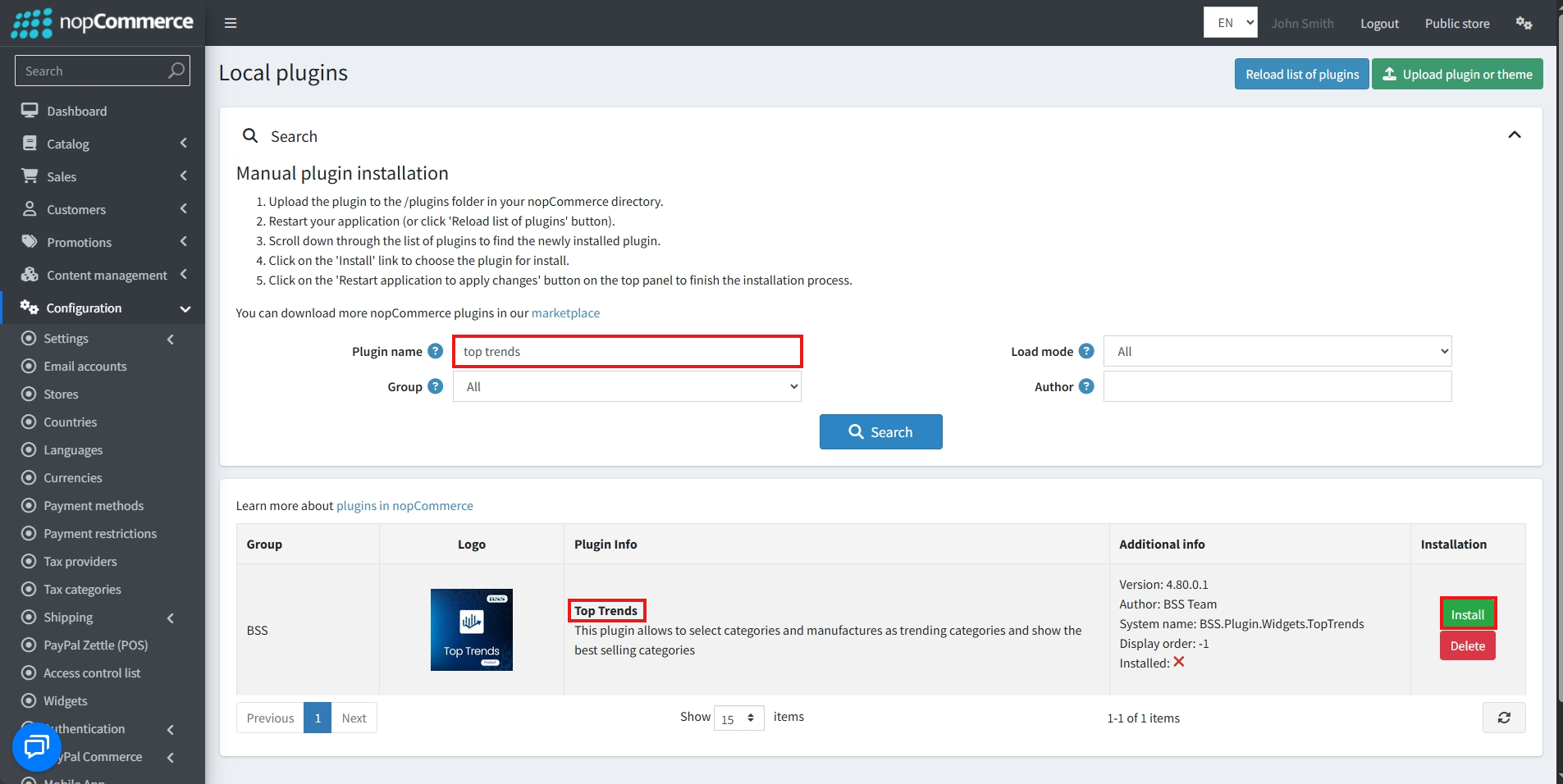
After uploading, install the ‘BSS Core' Plugin first.
-
Then scroll down or write the name of the plugin in the search bar, and install ‘BSS Top Trends'
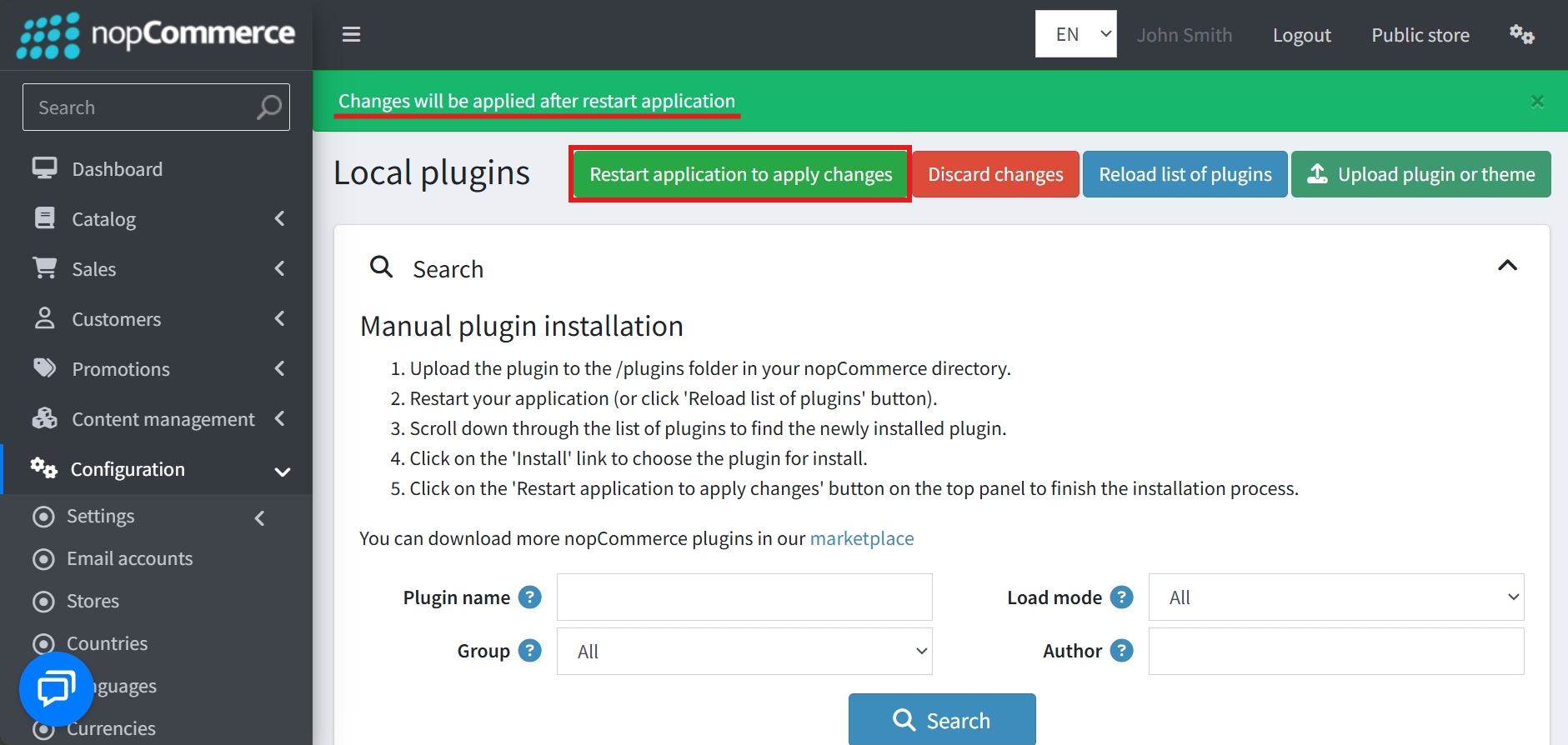
- To make the plugins functional, restart the application
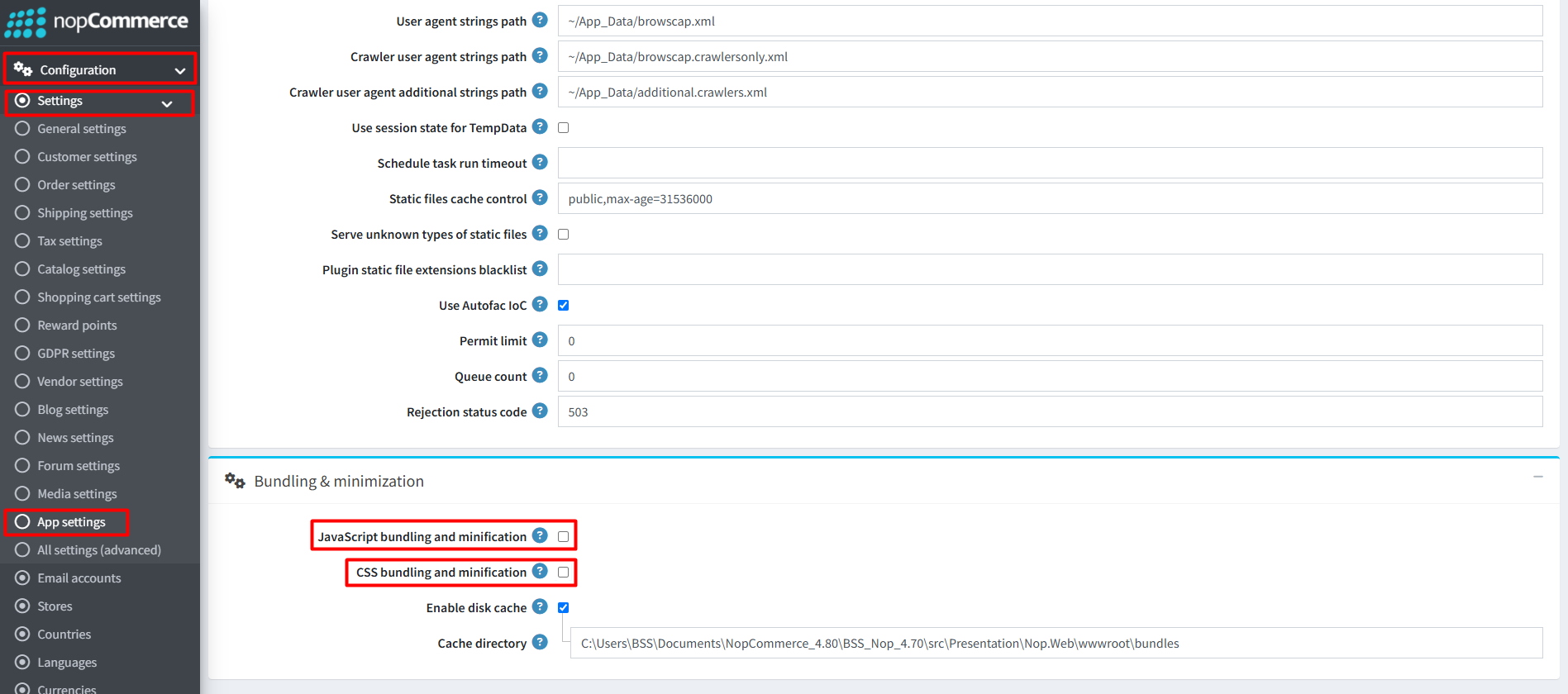
Recommendation: Go to > App Settings. If you find JavaScript bundling and minification, CSS bundling and minification are checked, then uncheck these two options and disable them.
CONFIGURE
-
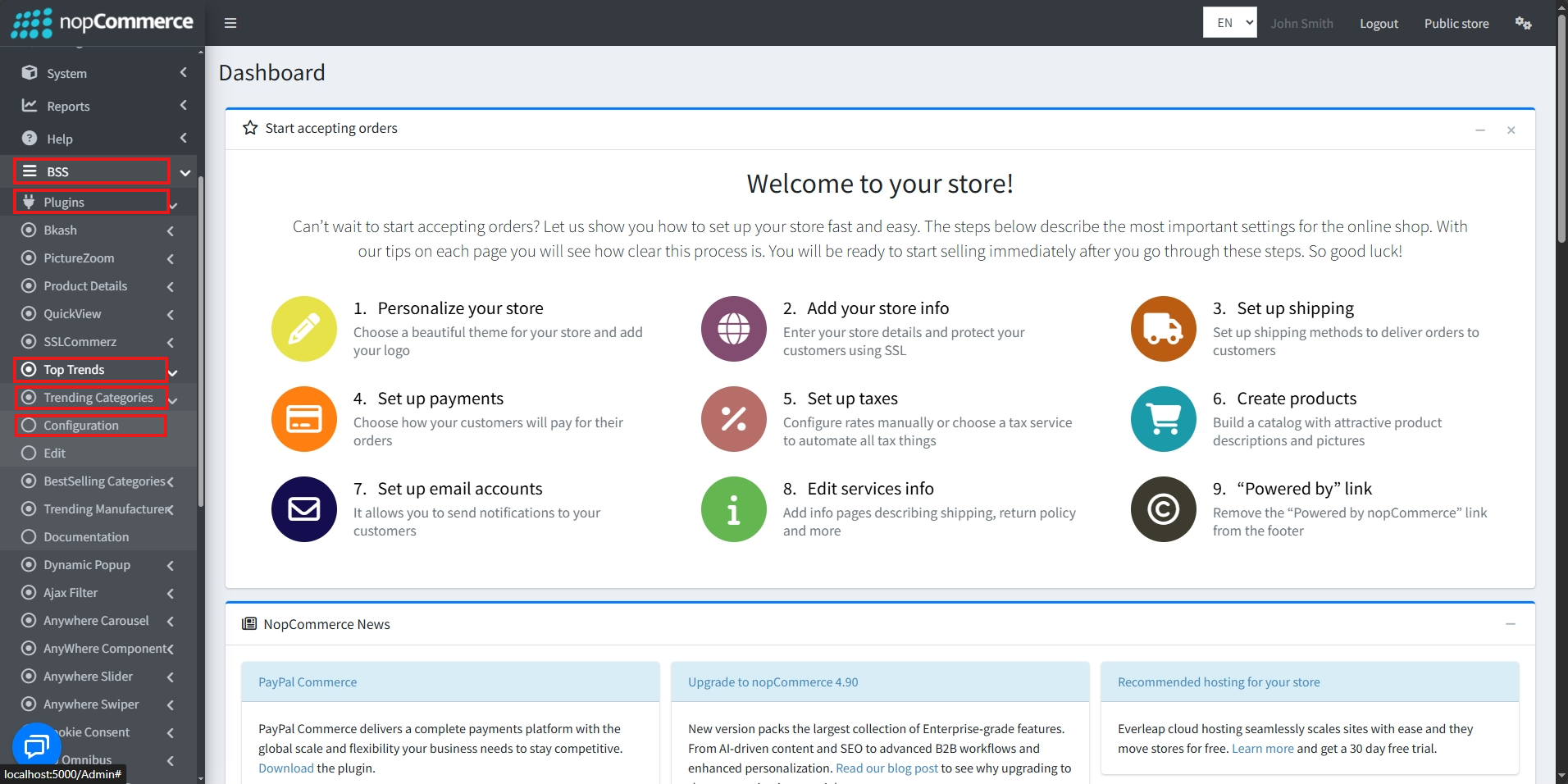
Go to Admin → BSS → Plugins → Top Trends → Trending Categories → Configuration
-
Enter the License string and save it. Then clear cache

TRENDING CATEGORIES
CONFIGURE
-
Then again go to BSS → Plugins → Top Trends → Trending Categories → Configuration to set the configuration.
-
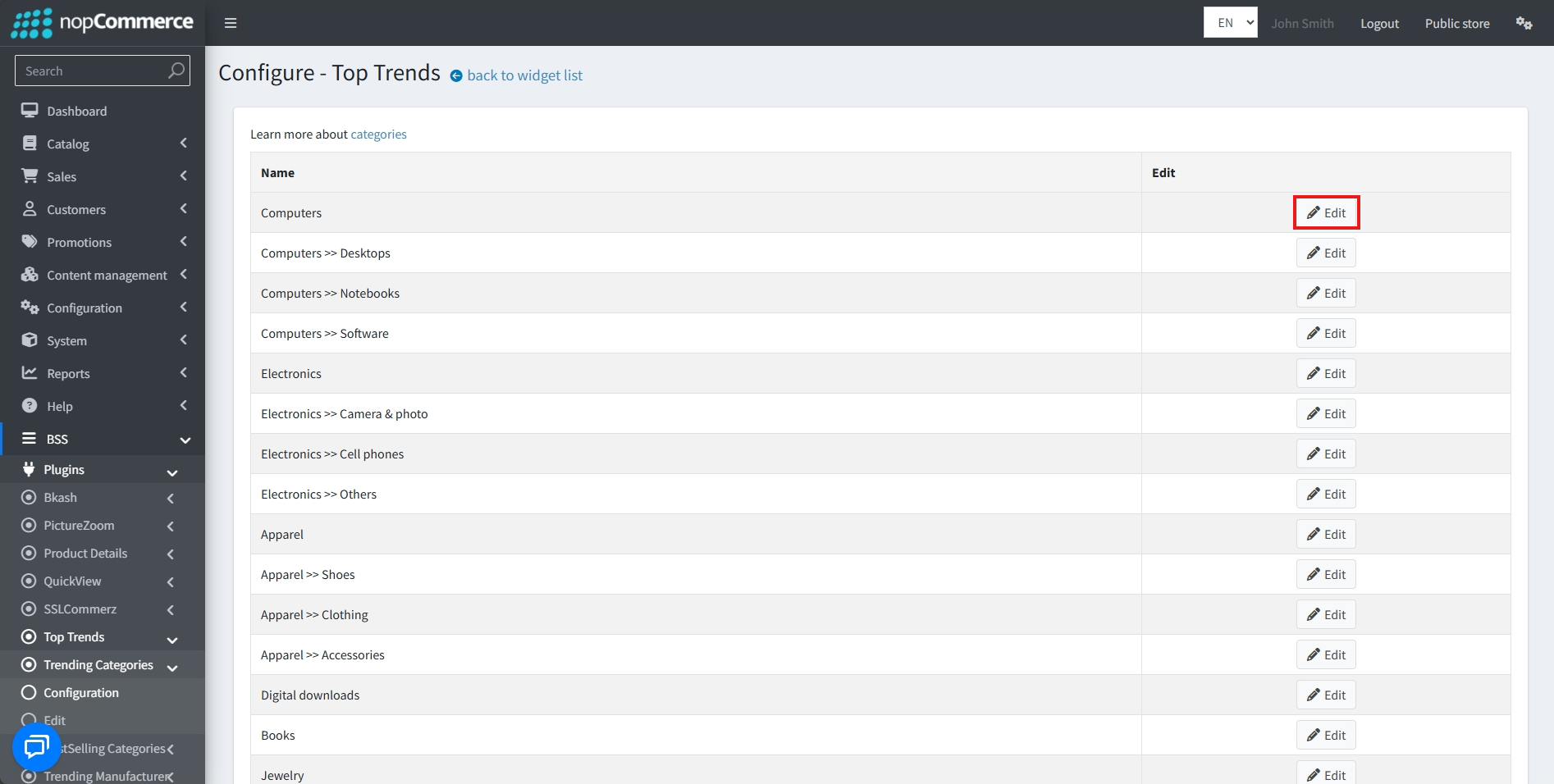
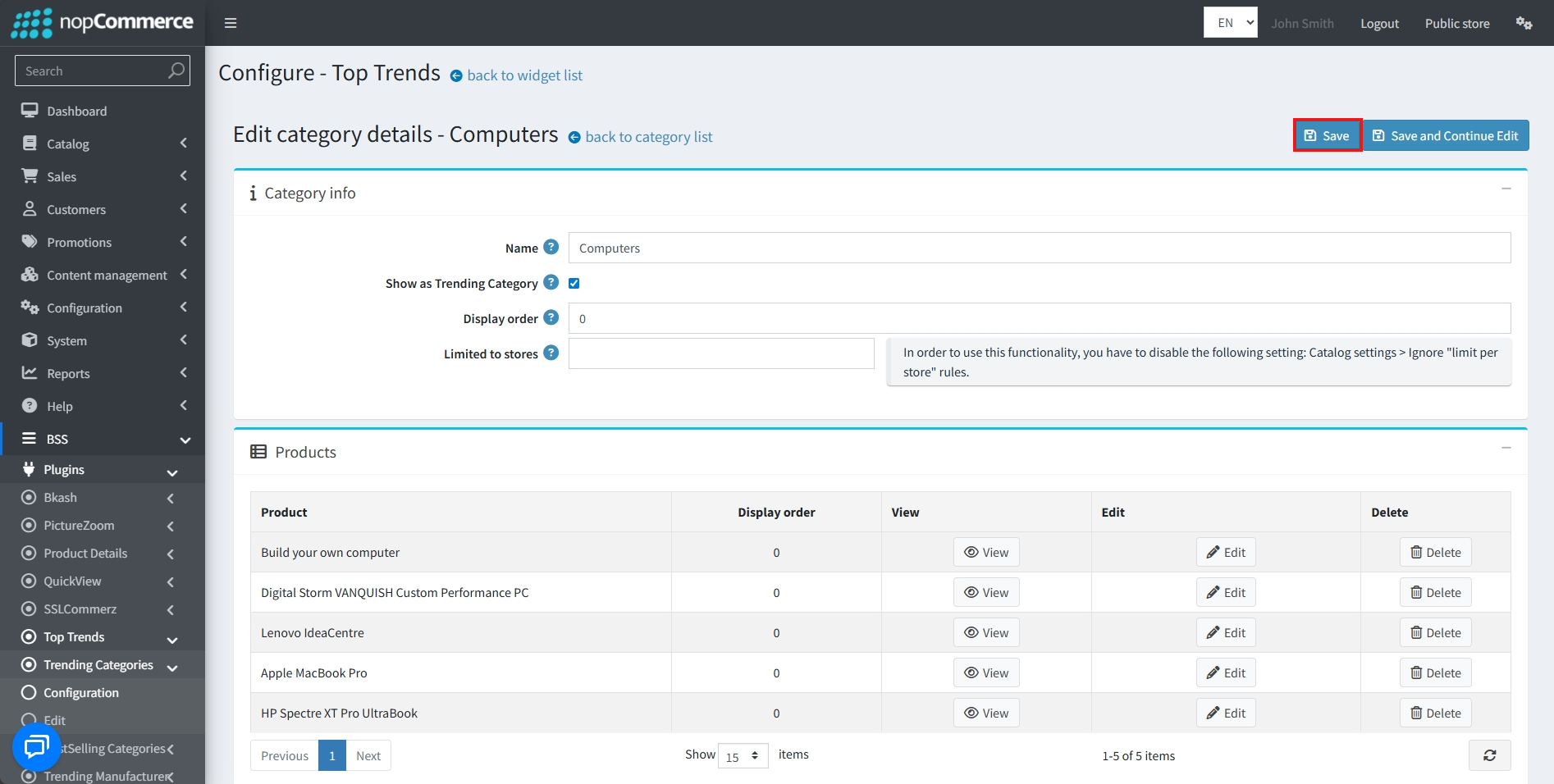
Click on the Edit button to configure the settings of each category
-
Set the Name of the Category
-
Check Show as Trending Category to activate this category and display it within the trending categories widget
-
Set the Display order to determine the sequence in which this trending category appears
-
The Limited to stores field restricts the visibility of this trending category to specific store instances in a multi-store setup
-
Manage the Products section to view, edit, or remove the specific items that will be featured within this trending category
-
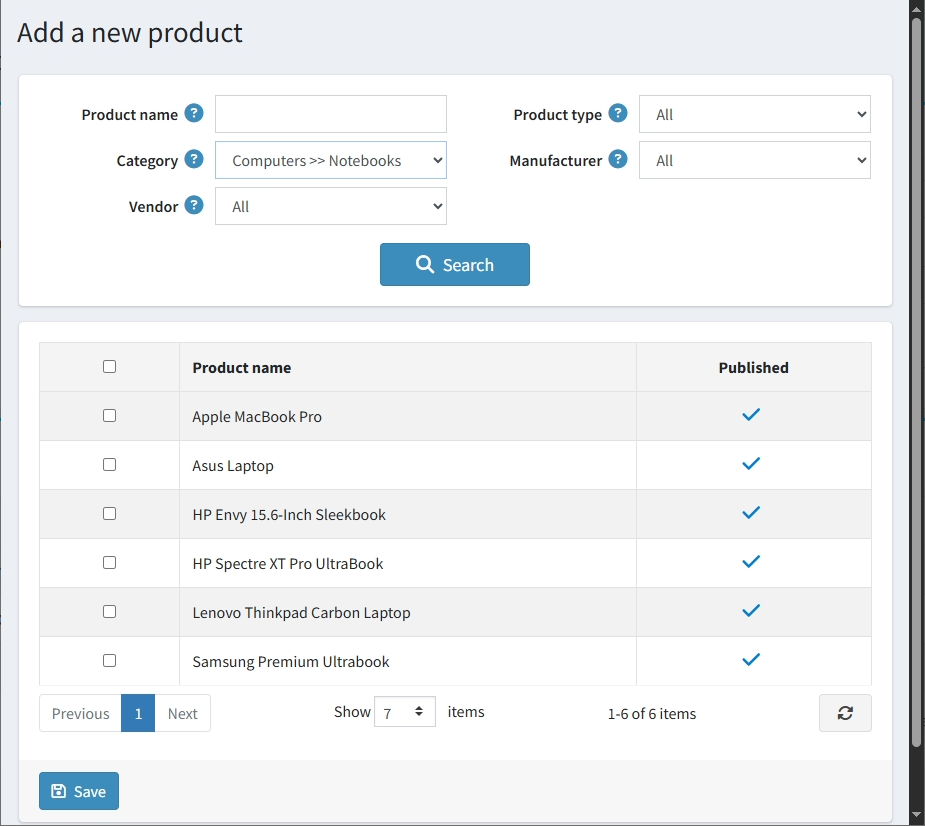
To add new products to the category, click on the ‘Add a new product’ button.
-
Search for the desired product by selecting a category
-
Check the box beside the Product name to select a specific product
-
Click on the Save button to add the selected products
-
Click on the Save button to save the changes
-
Alternatively, click on the Save and Continue Edit button to keep editing after saving the changes
EDIT
-
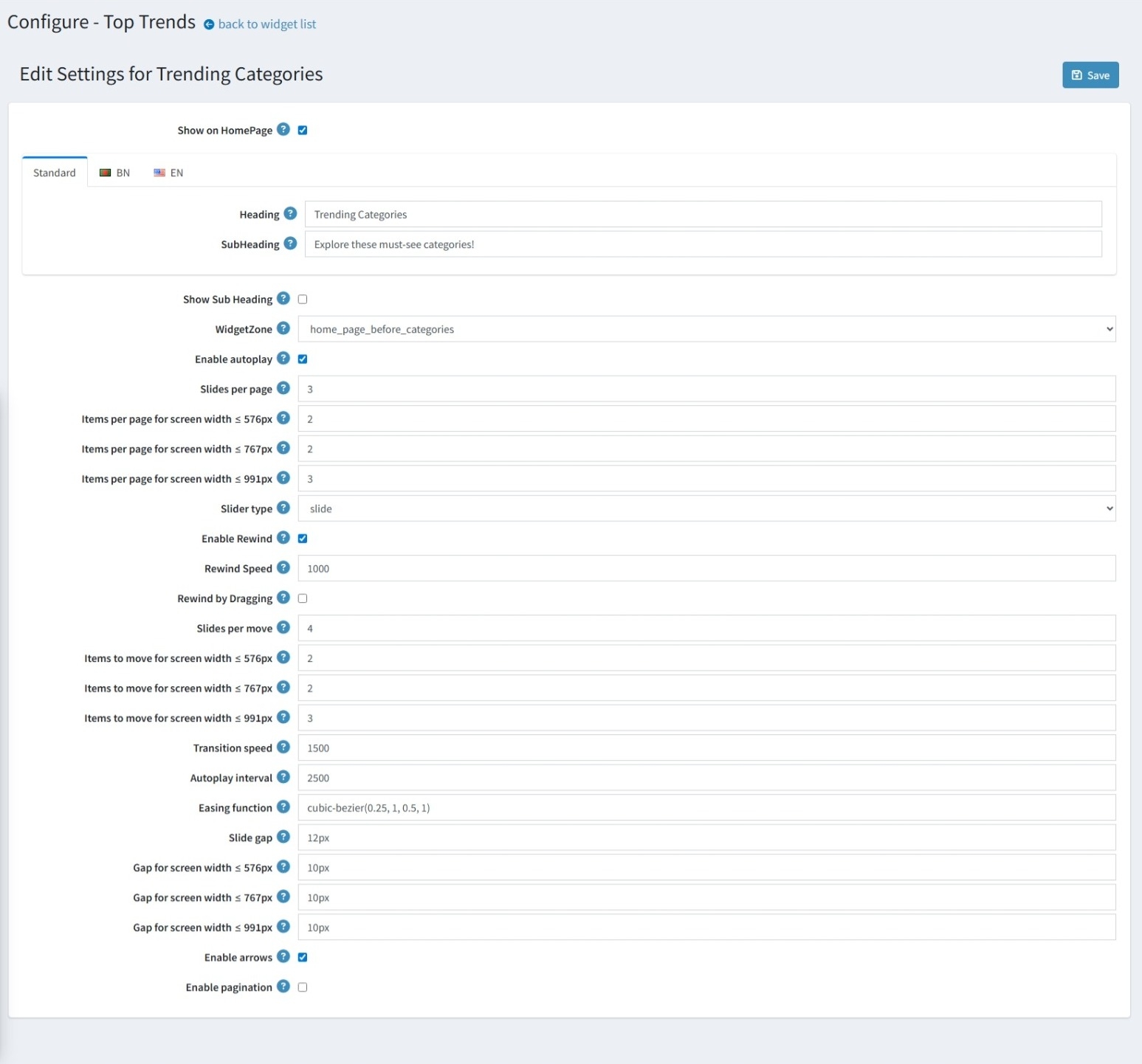
Go to Top Trends → Trending Categories → Edit
-
Set the Heading for the Trending Categories
-
Add context below the heading with Subheading
-
Show categories on the landing page by enabling Show on Homepage
-
Reveal the subheading when Show Subheading is checked
-
Control exact placement via WidgetZone (e.g., home_page_before_categories, home_page_top)
-
Advance slides automatically with Enable Autoplay
-
Decide how many categories display at once through Slides per Page
-
Keep layouts responsive by setting Items per Page for different screen widths
-
Pick an animation style using Slider Type
-
Loop back to the start with Enable Rewind
-
Adjust rewind timing through Rewind Speed (ms)
-
Allow manual pull‑back when Rewind by Dragging is active. The Rewind option must be enabled.
-
Set Slides per move to determine how many items shift during a single transition
-
Configure Items to move for different screen widths to manage movement behavior on smaller screens
-
Control animation duration via Transition Speed (ms)
-
Set delay between auto‑moves with Autoplay Interval (ms)
-
Smooth motion using an Easing Function (e.g., cubic‑bezier)
-
Maintain spacing by configuring Slide Gap and screen‑specific gaps
-
Add navigation arrows on the sides of the slider with Enable arrows
-
Check Enable pagination to display dots at the bottom for easy navigation
BESTSELLING CATEGORIES
CONFIGURE
-
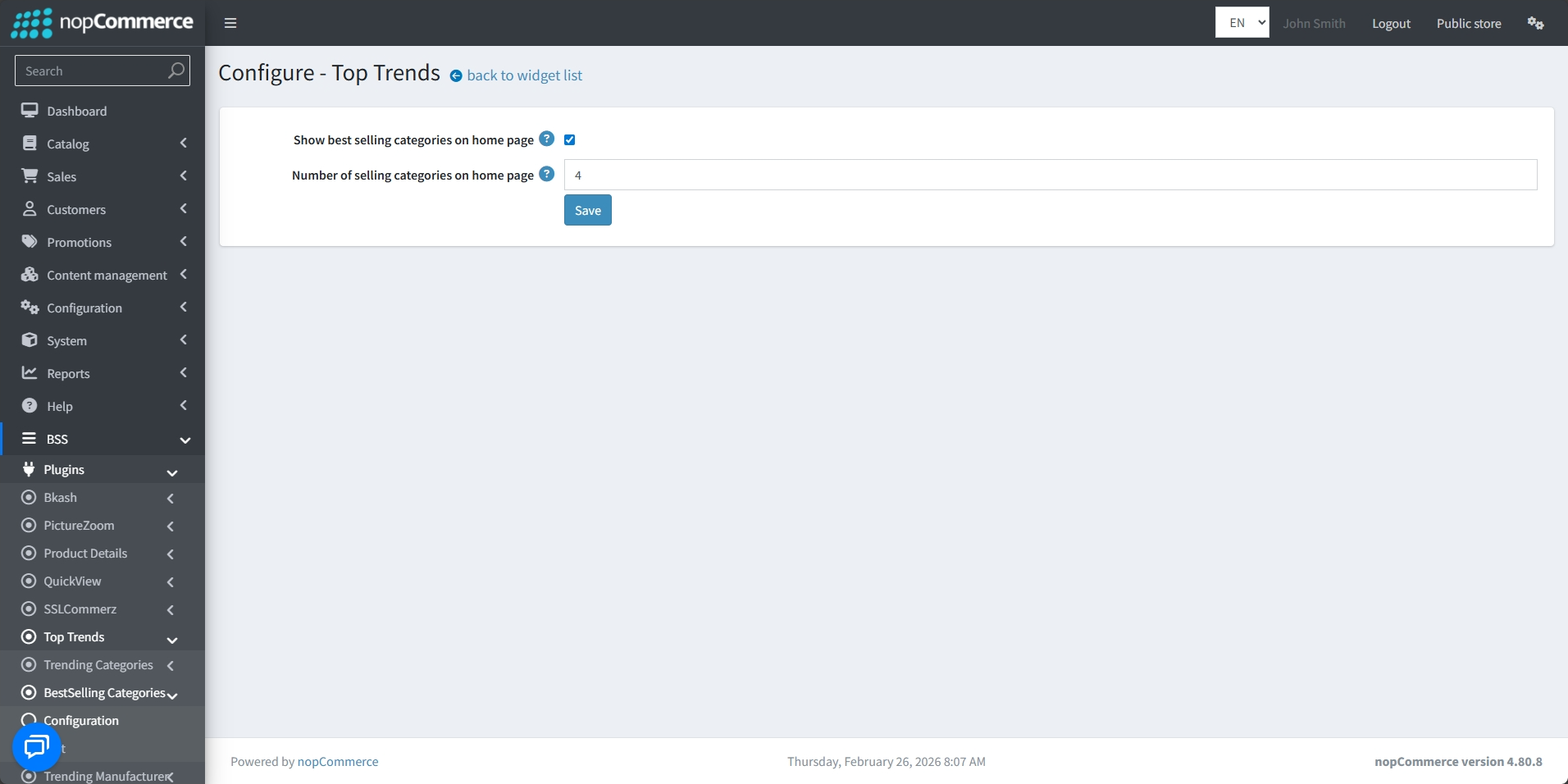
Go to BSS → Plugins → Top Trends → BestSelling Categories → Configuration
-
Check Show best selling categories on home page to display the best selling categories
-
Set Number of selling categories on home page to determine the number of bestsellers displayed on the home page
-
Click on the Save button to save changes
EDIT
-
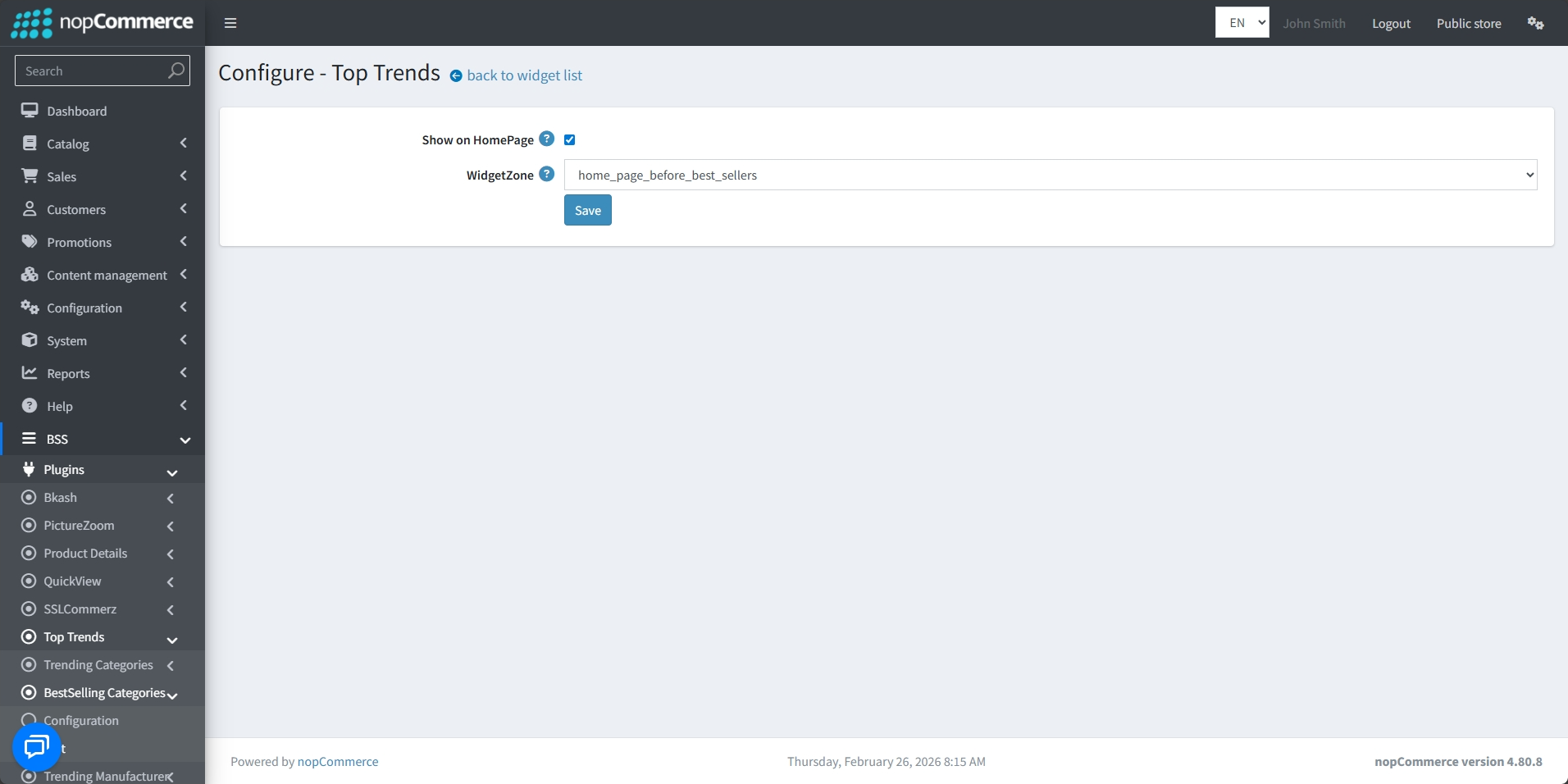
Go to Top Trends → BestSelling Categories → Edit
-
Enable Show on HomePage to display the bestselling categories on the home page
-
Select the WidgetZone from the dropdown to determine the exact placement of the bestselling categories on your site (e.g., home_page_before_products, home_page_bottom)
-
Click on the Save button to save changes
TRENDING MANUFACTURERS
CONFIGURE
-
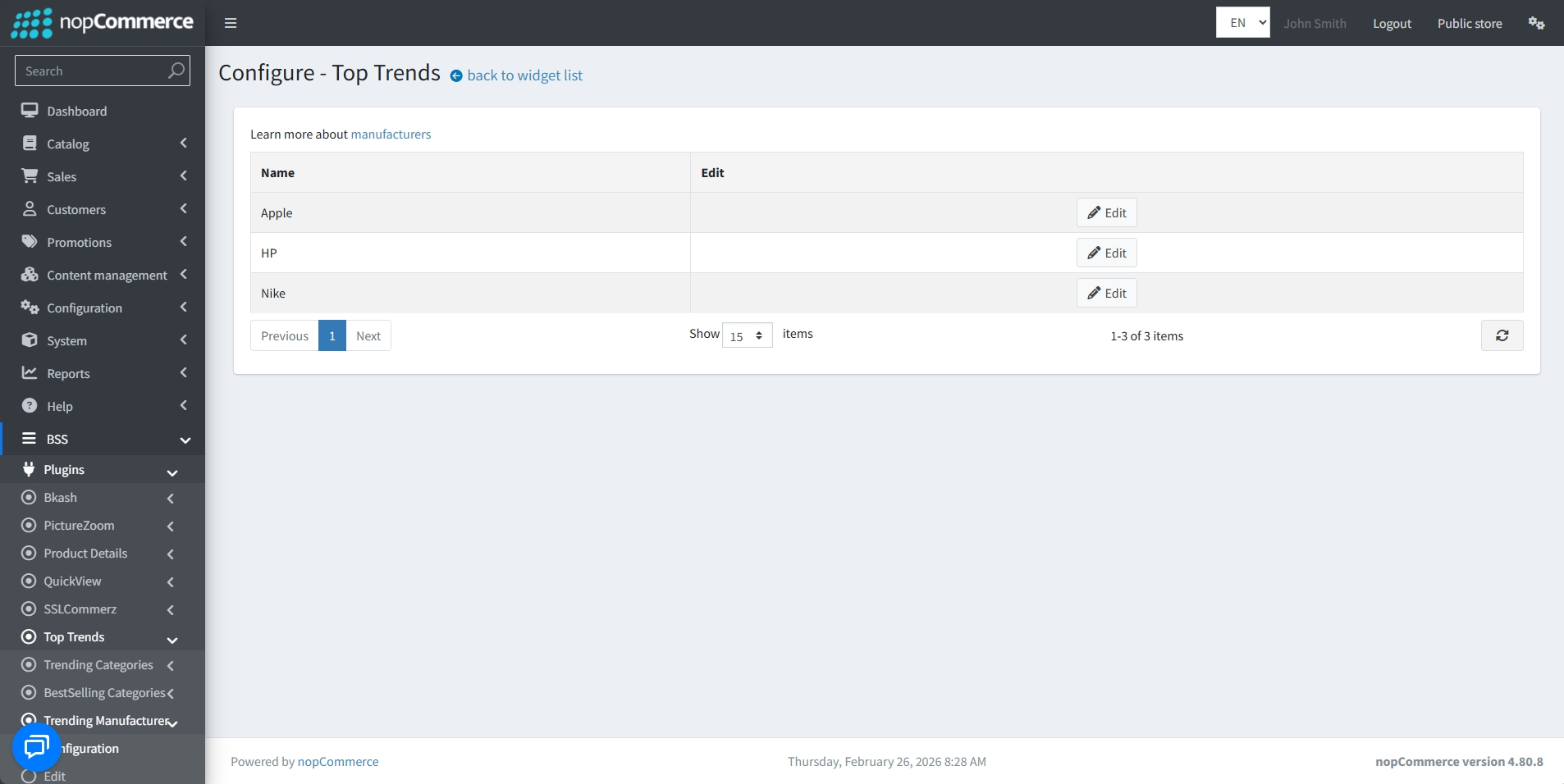
Go to BSS → Plugins → Top Trends → Trending Manufacturers → Configuration
-
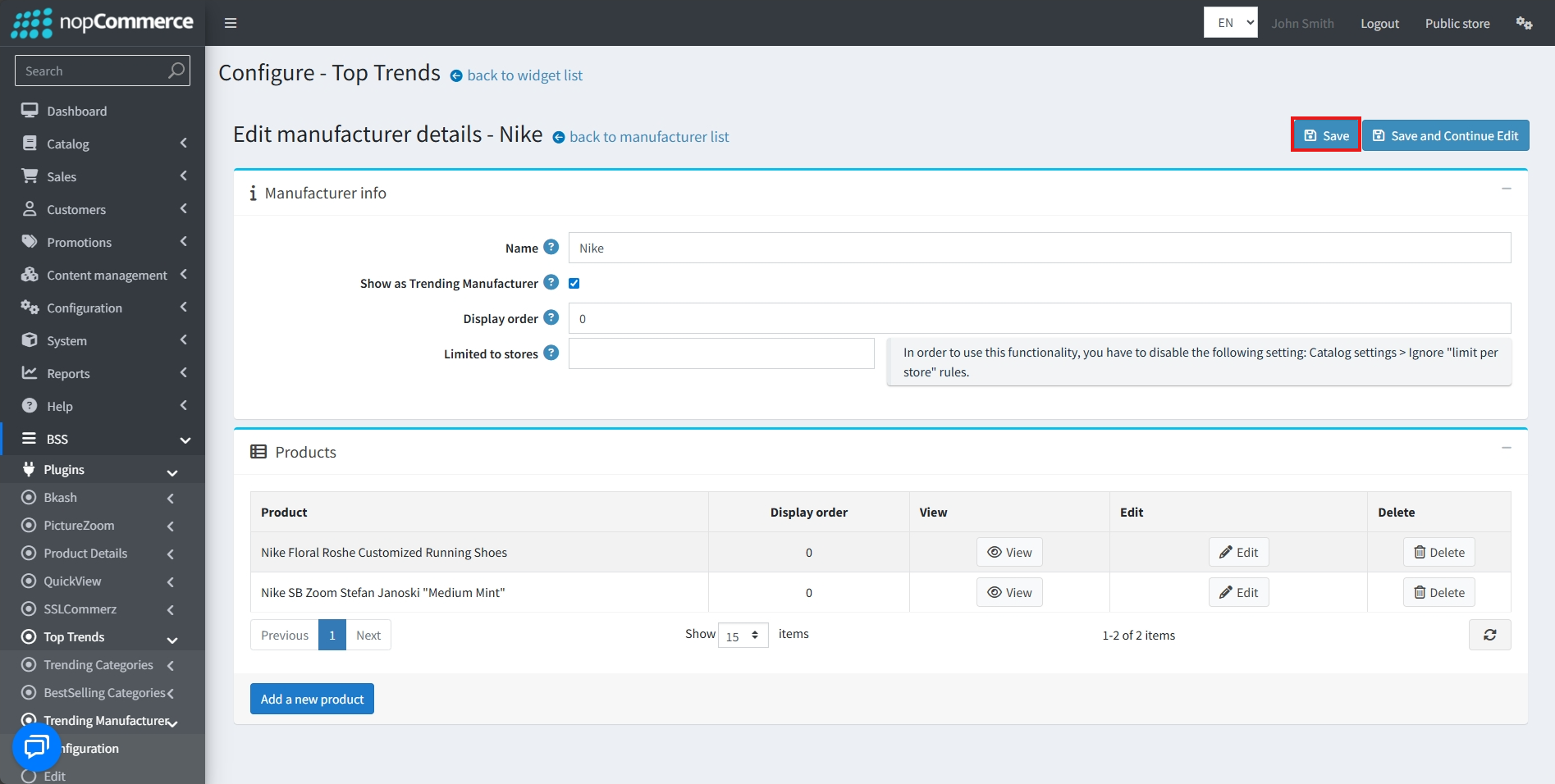
Click on the Edit button to edit manufacturer details
-
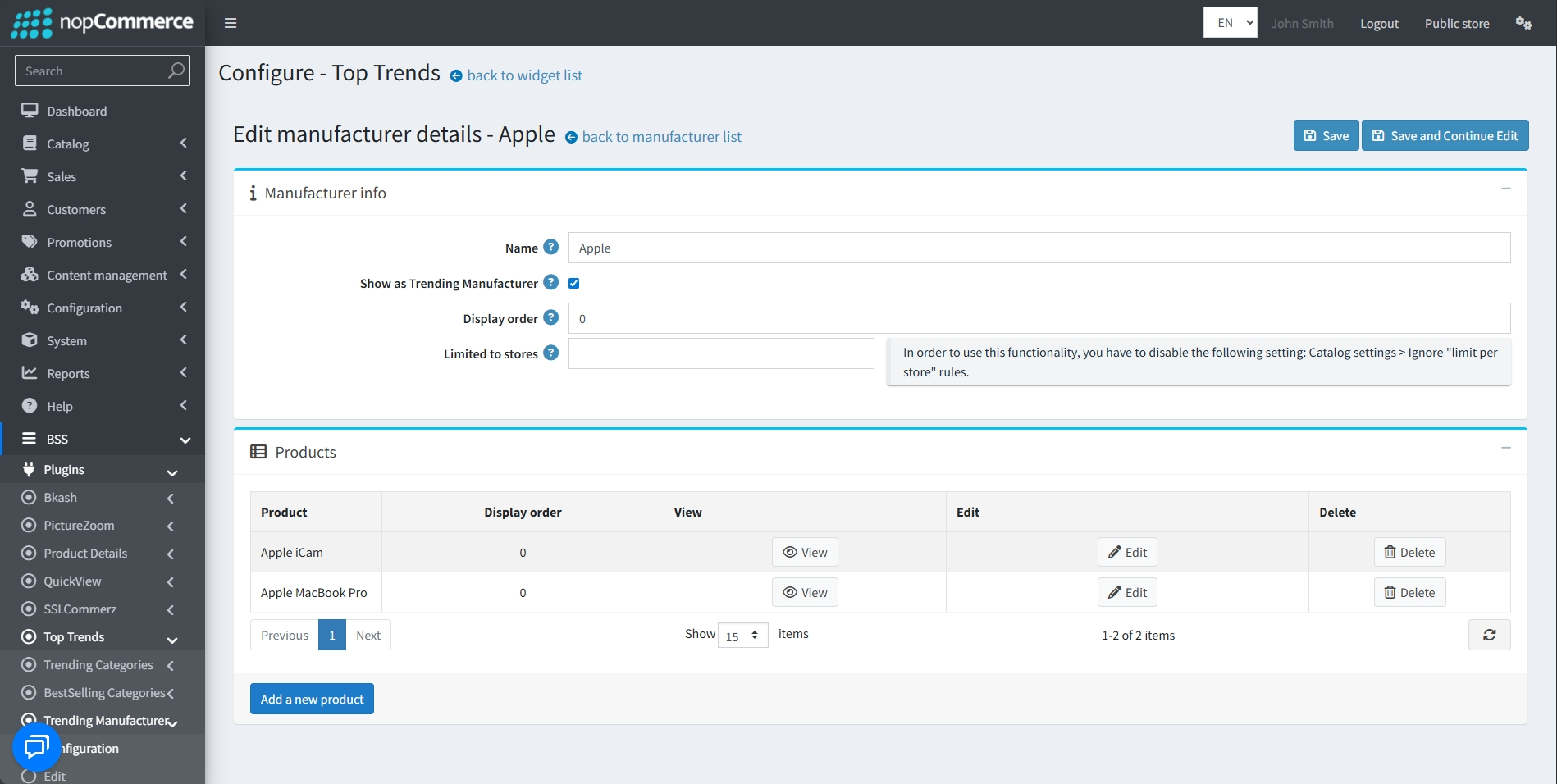
Set the Name of the Manufacturer to identify the brand
-
Check Show as Trending Manufacturer to enable this manufacturer to appear in the trending manufacturers section on the storefront
-
Set the Display order to define the sequence in which this manufacturer is displayed
-
Use the Limited to stores field to restrict the manufacturer's visibility to specific stores; please note that you must disable the "Ignore 'limit per store' rules" setting in your Catalog settings to use this functionality
-
Manage the Products section to view, edit, or remove the specific items that will be featured within this trending category
-
To add new products to the category, click on the ‘Add a new product’ button
-
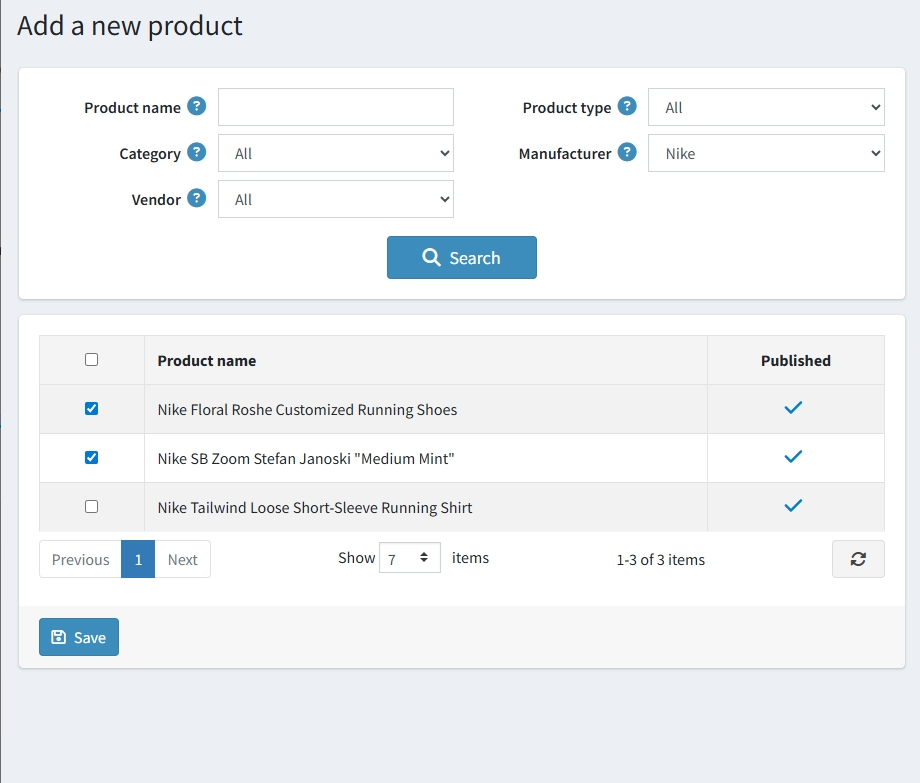
Products manufactured by the manufacturer will be displayed
-
Check the box beside the Product name to select a specific product
-
Click on the Save button to add the selected products
-
Click on the Save button to save the changes
-
Alternatively, click on the Save and Continue Edit button to keep editing after saving the changes
EDIT
-
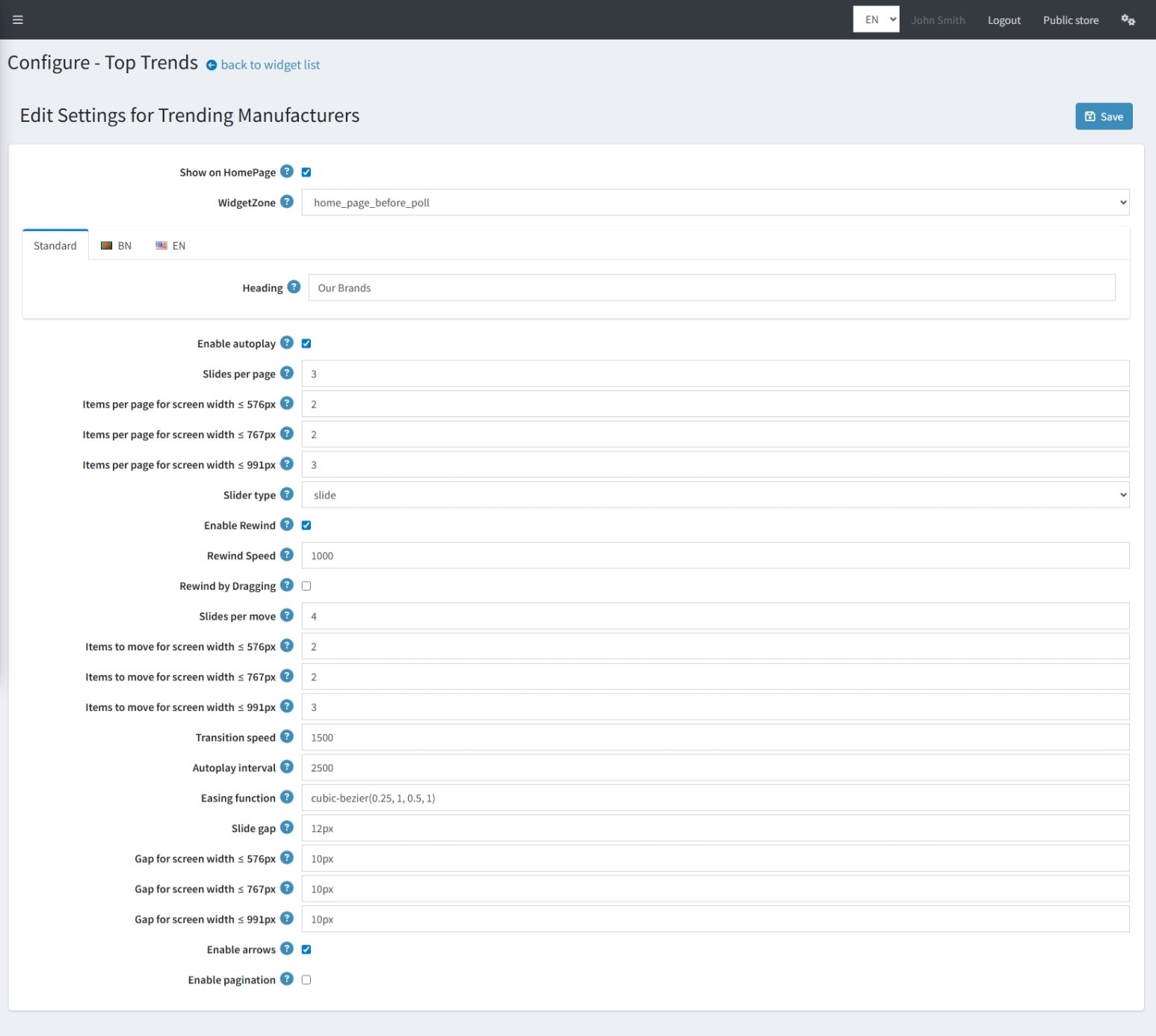
Go to Top Trends → Trending Manufacturers → Edit
-
Display the manufacturers section on the homepage by enabling Show on Homepage
-
Control placement by selecting a WidgetZone from the dropdown (e.g., home_page_before_poll)
-
Set the Heading to provide a title for the manufacturers section
-
Cycle through items automatically when Enable Autoplay is checked
-
Decide how many items appear at once using Slides per Page
-
Keep layouts responsive by configuring Items per Page for different screen widths
-
Choose the animation style for transitions via Slider Type
-
Check Enable Rewind to allow the slider to return to the first item after reaching the end of the list
-
Adjust the rewind transition time with Rewind Speed (ms)
-
Allow manual rewind by drag when Rewind by Dragging is active. The Rewind option must be enabled.
-
Control how many items shift per transition using Slides per Move
-
Configure Items to move for screen widths to manage movement behavior on smaller screens
-
Define animation duration through Transition Speed (ms)
-
Set the delay between automatic movements with Autoplay Interval
-
Customize smoothness and acceleration using an Easing Function (e.g., cubic‑bezier)
-
Maintain clean spacing by setting Slide Gap and adjusting gaps for different screen widths
-
Add navigation arrows on the sides of the slider with Enable arrows
-
Check Enable pagination to display dots at the bottom for easy navigation
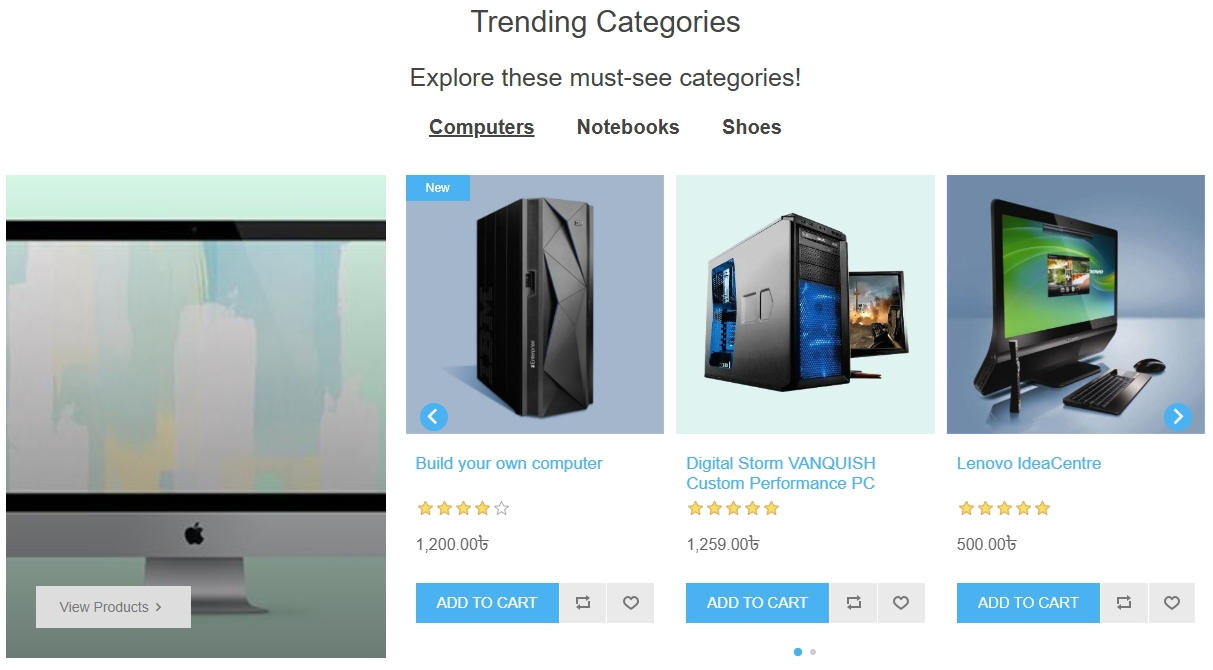
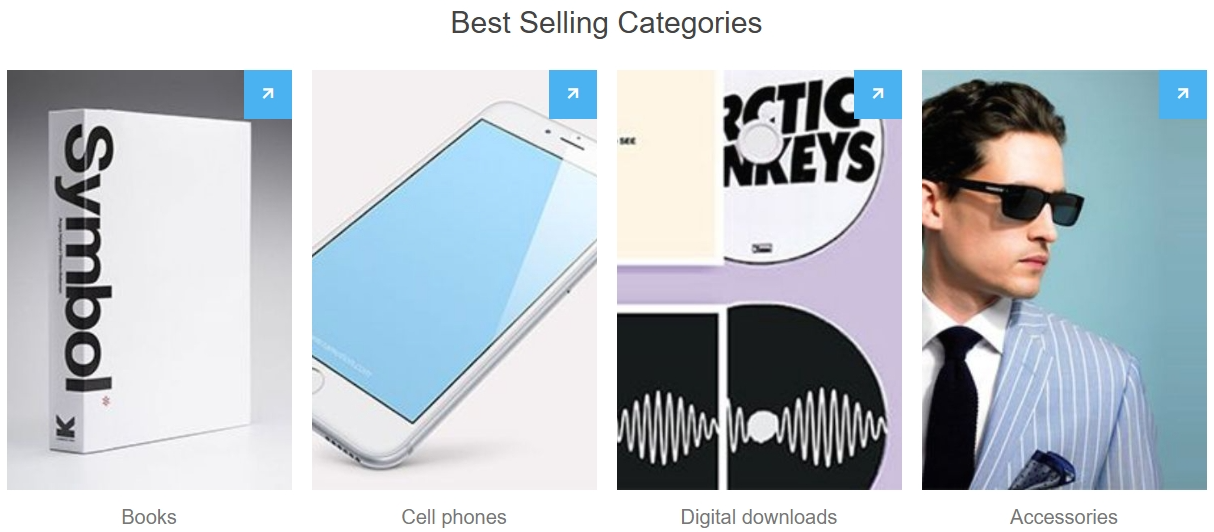
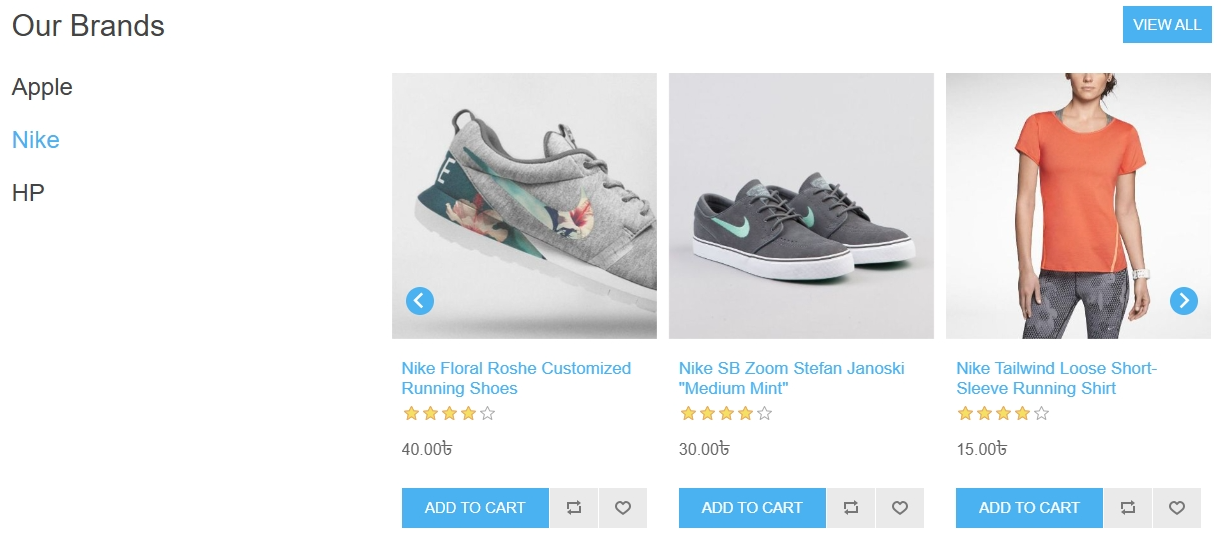
PUBLIC VIEW
FEATURES
-
Easy installation and configuration with a clean, intuitive admin panel
-
Supports multi-store visibility through the “Limited to store” setting
-
Supports all nopCommerce widget zones, allowing flexible placement
-
Supports three dynamic promotion sections: Trending Categories, BestSelling Categories, and Trending Manufacturers
-
Fully responsive design with configurable settings across device breakpoints
-
Advanced slider animation with customizable speeds, autoplay intervals, and smooth easing functions
-
Manual interaction supported through arrows, pagination, dragging, and rewind with adjustable speed
-
Simple content management by searching and adding products directly to categories or manufacturers
-
Customizable headings and subheadings for trending sections to engage regional audiences
-
Supports dynamic data sources to automatically display bestselling categories on the homepage